Remove Highlights from Scanned PDFs Online
Upload a highlighted PDF to clean yellow marker, colored highlights, underlines, circles, notes, and study marks from scanned or image-based pages while keeping the printed text and layout readable.
Drop your files here
or click to browse files
Clean Visible Highlight Marks
Remove yellow highlights, colored marker strokes, underlines, circles, and study marks that are baked into scanned PDF pages. Works with multi-page PDF documents and single document images.
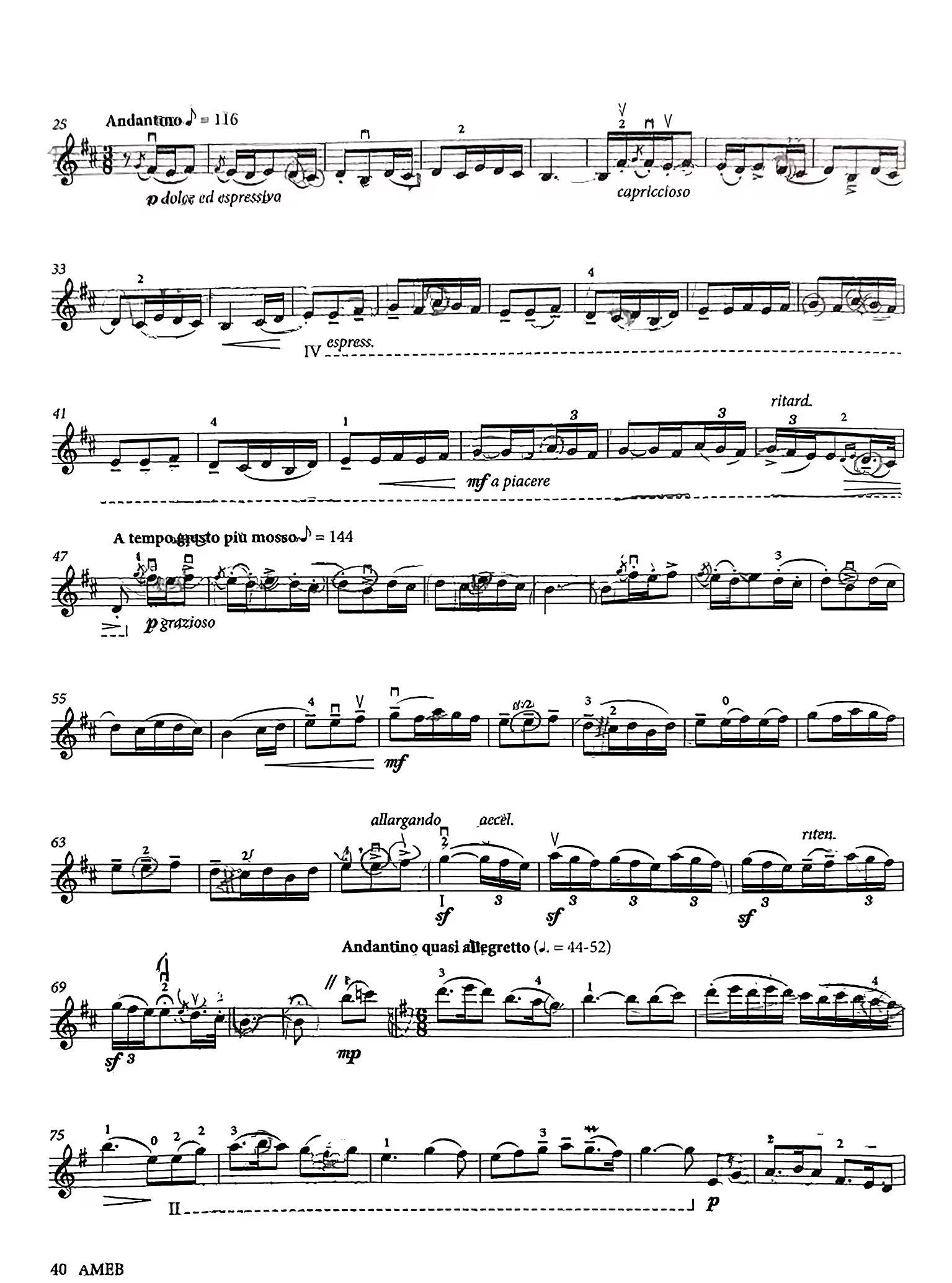
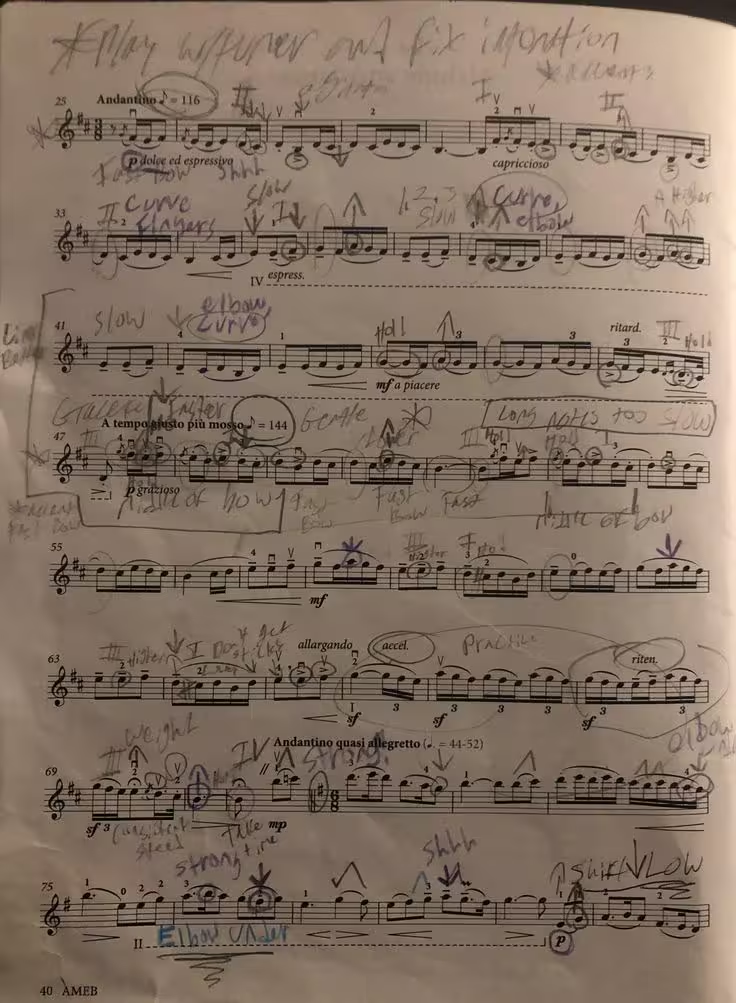
Preserve the Text Under Highlights
The tool is designed to reduce visible highlight color while keeping the original printed text, tables, page numbers, headers, and document layout as readable as possible.
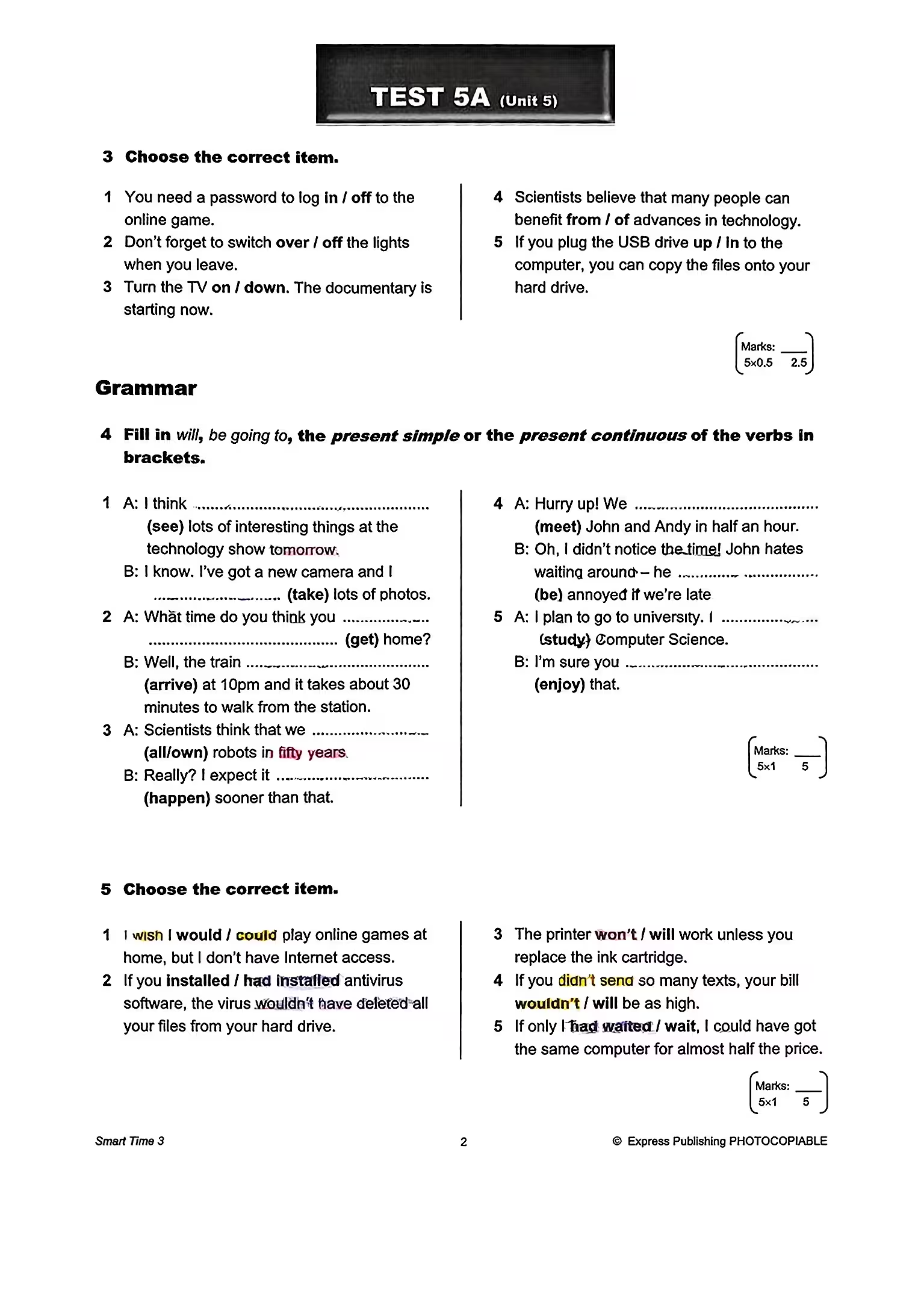
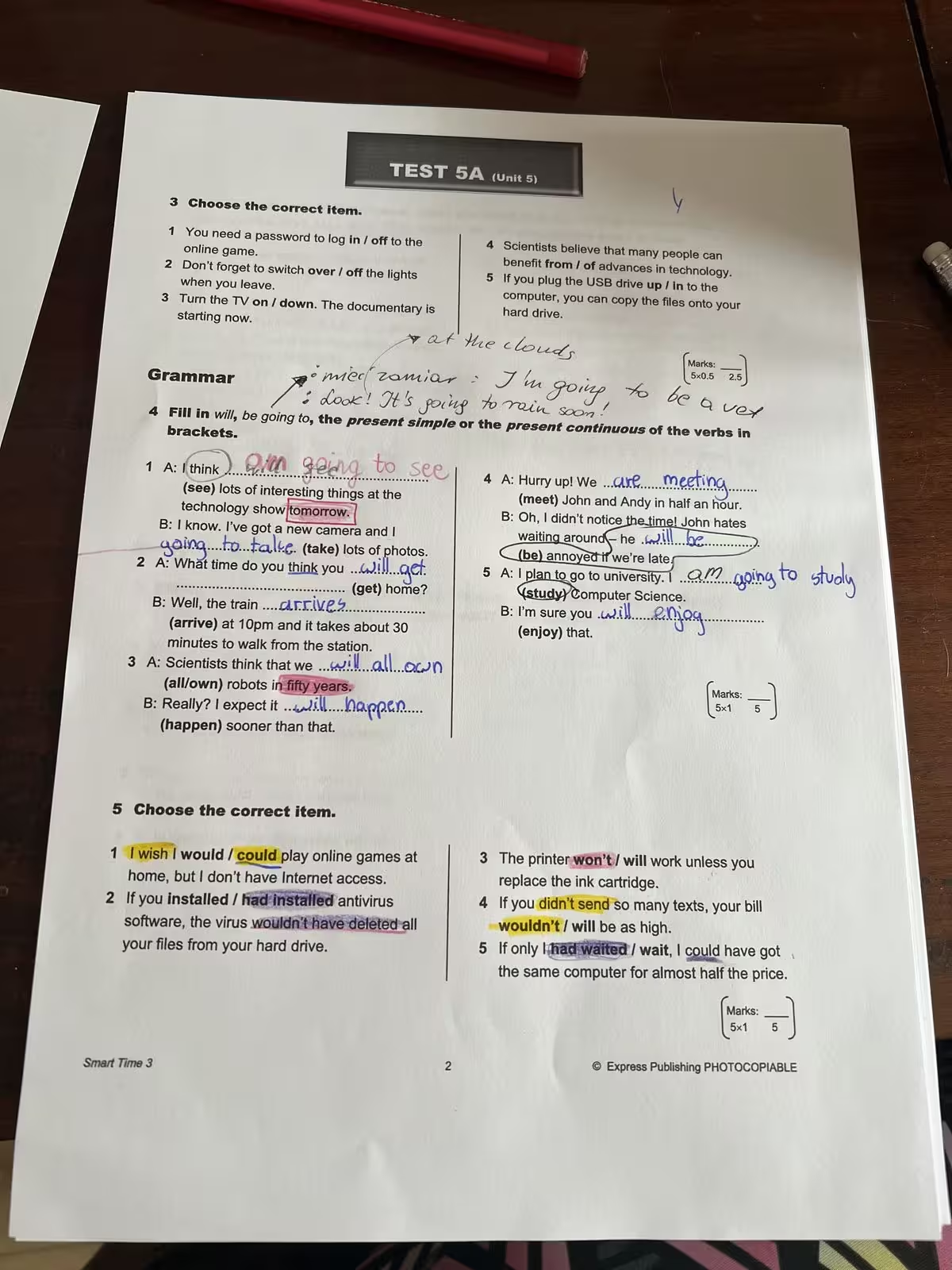
Restore Cleaner Reading Copies
Turn marked-up reading packets, class notes, research scans, contracts, and review PDFs into cleaner copies that are easier to read, print, share, or archive.
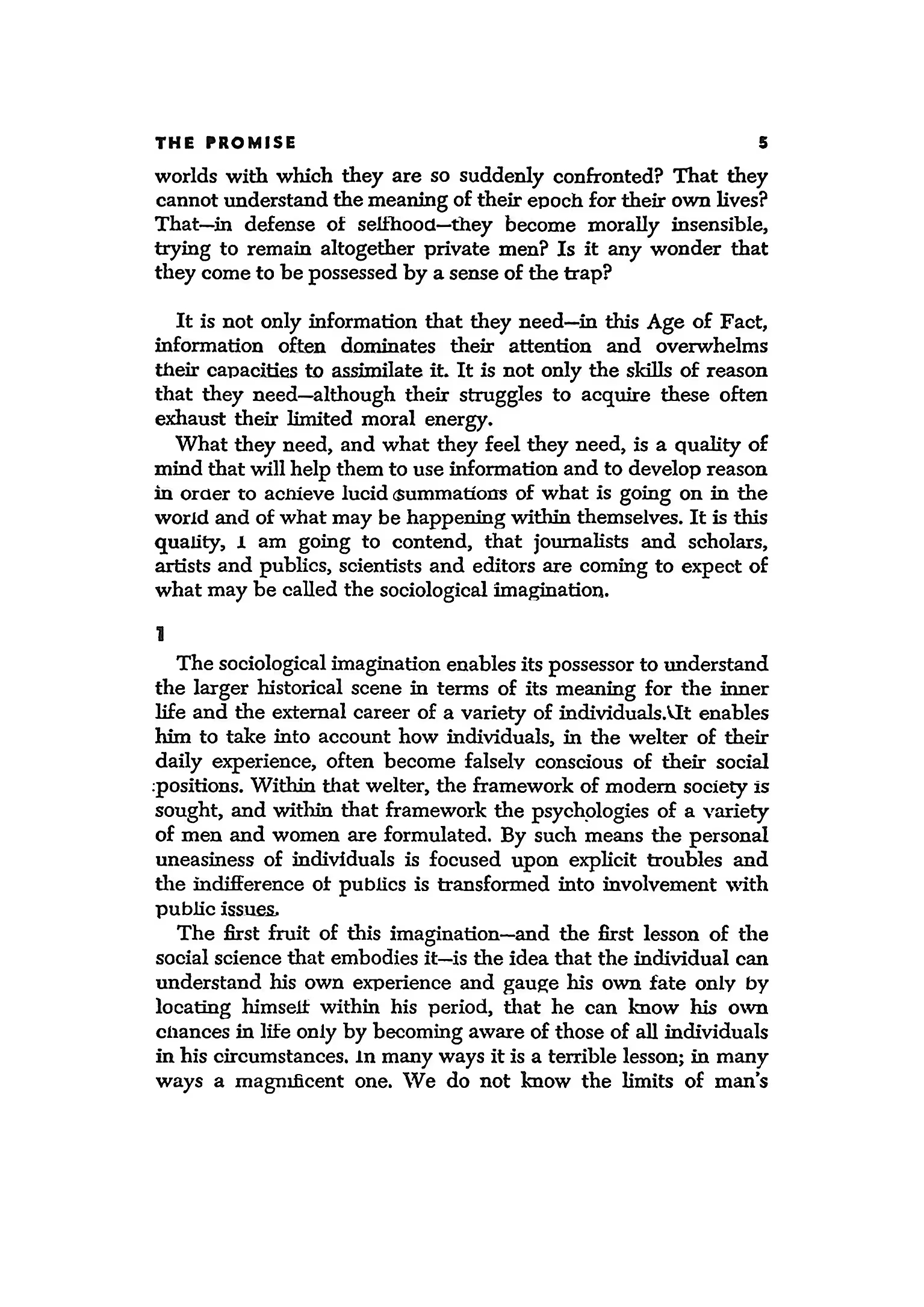
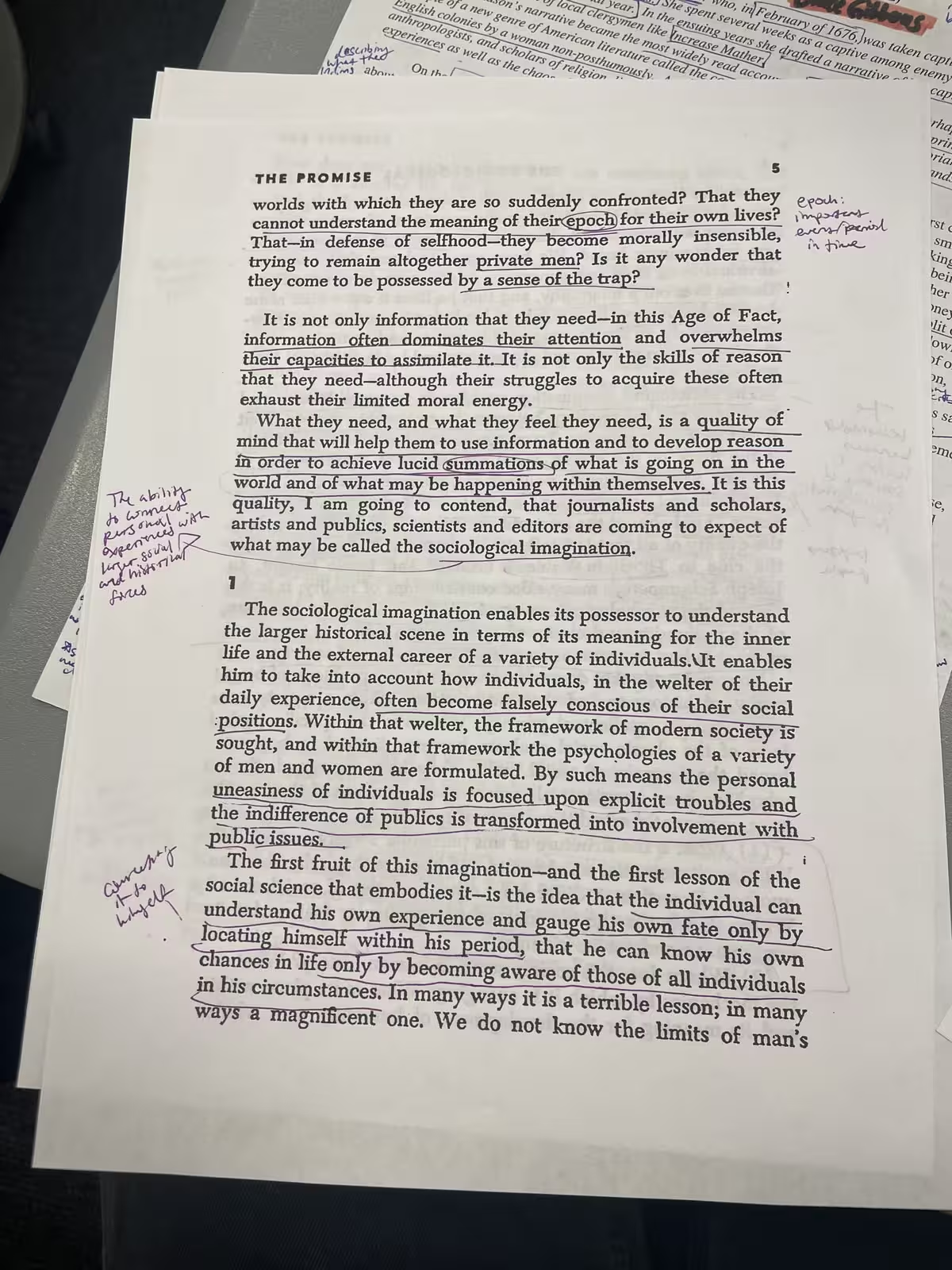
Remove Highlights from a PDF in 4 Simple Steps
Upload your highlighted PDF
Choose a scanned PDF, image-based PDF, document photo, screenshot, or multi-page PDF packet from your device.
Pick a cleanup model
Use Basic for fast cleanup, or Advanced to better preserve page color, printed text, and fine details.
Clean the highlight marks
The tool reduces visible highlight strokes, colored marker marks, underlines, notes, and study markings while preserving the page layout.
Fine-tune and download
If any marks remain, use manual editing to clean specific areas, then download the cleaned pages as images or export them back into a PDF.
Clean Highlighted PDFs for Reading, Printing, and Sharing
Remove visible highlights and study marks from scanned PDF pages so your documents look cleaner and are easier to reuse.

Students
Clean highlighted lecture notes, reading packets, textbook scans, and study PDFs before sharing them, reprinting them, or organizing your files.

Researchers
Remove highlighter marks, margin notes, and review markings from scanned papers before saving a cleaner reference copy.

Office Documents
Clean marked contracts, forms, reports, and review copies so the final PDF looks easier to read and distribute.
What users are saying
Students, researchers, and professionals use this tool to turn highlighted scans into cleaner PDF copies.
“I had old reading packets with yellow highlights baked into the scans. This made them much cleaner before I shared them with my study group.”
Maya L.
Graduate student
“We needed to clean review highlights from scanned contract pages. The text stayed readable and the pages looked much easier to distribute.”
Chris W.
Operations manager
“I use it to clean highlighted research scans before archiving them. It saves me from hunting for an unmarked copy of the same paper.”
Avery K.
Research assistant
Frequently Asked Questions
Answers to common questions about removing visible highlights and study marks from scanned or image-based PDFs.
Can I remove highlights from a scanned PDF?
Yes. You can upload a scanned or image-based PDF and remove visible highlight marks, colored marker strokes, underlines, circles, notes, and study marks while keeping the printed content readable as much as possible.
Is this different from deleting PDF annotations?
Yes. If a highlight is a real PDF annotation layer, a PDF editor may be able to delete it directly. This tool is for scanned PDFs or image-based pages where the highlight is part of the page image and cannot be selected.
Does it work on yellow, pink, blue, or green highlights?
Yes. It can reduce many common highlight colors, including yellow, pink, blue, green, orange, and other marker strokes. Results depend on scan quality and how strongly the highlight covers the text.
Will the text under the highlight stay visible?
The tool is designed to preserve printed text, tables, and page layout while removing visible highlight color. Results are best when the highlight does not fully obscure or damage the original text.
Can I clean a multi-page PDF?
Yes. You can upload a multi-page PDF and clean the pages without manually converting each page into an image first.
Can it remove underlines, circles, and handwritten notes too?
Yes. In addition to highlights, it can help remove visible underlines, circles, margin notes, pen marks, and other study markings from scanned PDF pages.
Can I download the cleaned result as a PDF?
Yes. After cleanup, you can download the cleaned pages as images or export the processed pages back into a PDF.
Is my uploaded PDF private?
Yes. Uploaded files are processed securely and are not used for AI training. Free users' files are automatically deleted from our servers within 24 hours.
Clean Highlights from PDFs
Remove yellow highlights, colored marker strokes, underlines, notes, and study marks from PDF pages, then download a cleaner version for reading, sharing, printing, or archiving.