Introduction
A highlighted PDF is useful while you are studying, reviewing, or marking important sections. But when it is time to share, print, archive, or reuse the document, those bright yellow, pink, blue, or green marks can make the page look messy.
The problem is even more common with scanned PDFs. If the PDF was created from a scanner or phone photo, the highlight is no longer a separate editable annotation. It becomes part of the page image, which means you usually cannot select it and delete it with a normal PDF editor.
This guide shows you how to clean visible highlights from scanned PDFs with Remove Highlights from PDF. The goal is to reduce the marker color while keeping the printed text and page layout readable.
Upload a scanned PDF and clean visible highlight marks from image-based pages.
Remove Highlights from PDFWhy Scanned PDF Highlights Are Hard to Remove
Not all PDF highlights work the same way. A digital highlight is usually an annotation layer. It sits on top of the text and can often be edited or removed with a PDF editor. A scanned highlight is different. It comes from a physical highlighter on paper, then gets captured by a scanner, camera, or photocopier.
Once that happens, the PDF only contains a flat page image. The highlight is baked into the scan, just like the printed words, paper texture, and background. Cleanup has to treat the page like an image, reduce the colored marker area, and preserve as much of the original text as possible.
The best results come from pages where the text under the highlight is still visible. If the marker is too dark, if the scan is blurry, or if the highlight completely covers the letters, the result may need extra manual editing.
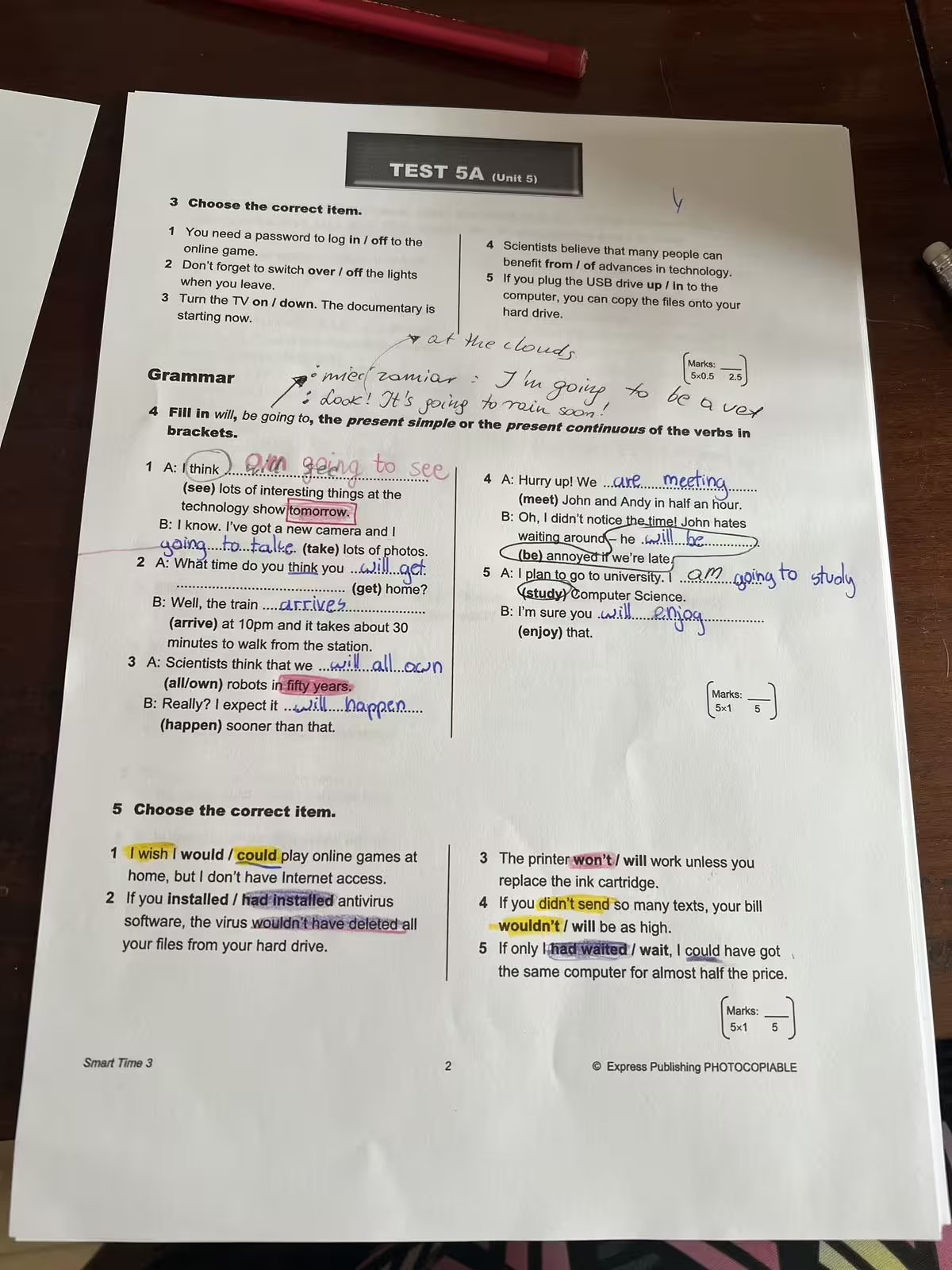 Before
A scanned PDF page with yellow marker, study notes, and visible highlight marks baked into the page image.
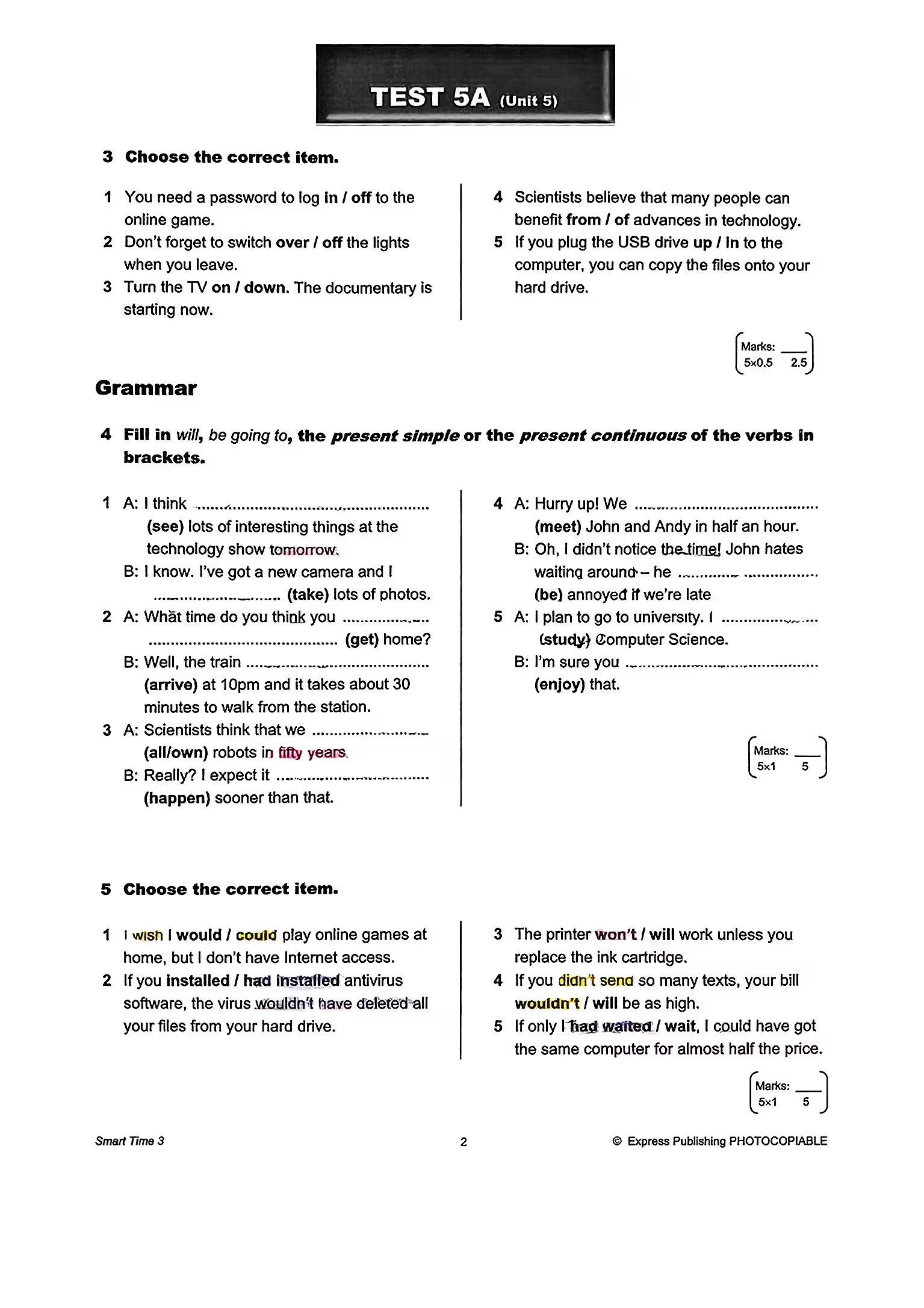 After
AfterThe same page after highlight cleanup, with the printed text and page structure kept readable.
Upload Your Highlighted PDF
Start by uploading your scanned PDF, image-based PDF, document photo, or screenshot. Before processing, preview the page and make sure the highlight marks are visible enough to clean. A sharp scan with readable text usually produces the best result.
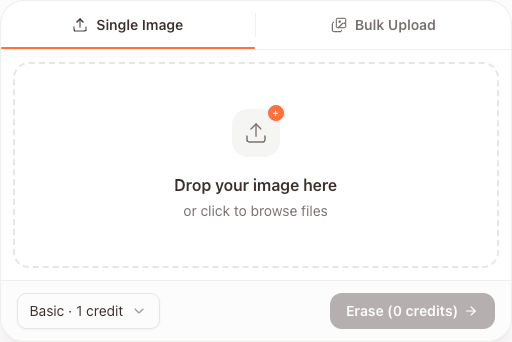
Start with your scanned PDF and preview the cleaned result in a few clicks.
Upload a Highlighted PDFChoose the Right Cleanup Model
After uploading the PDF, choose a cleanup model based on the condition of the page. For simple black-and-white documents with light yellow highlighting, the Basic model is often enough. It is useful for standard study packets, printed forms, and simple reading materials.
For more complex pages, the Advanced model is usually better. Choose Advanced when the document has colored diagrams, logos, tables, shaded areas, multiple highlight colors, or marker strokes that overlap printed text.
If you are cleaning many pages, test one page first. Once you know which model works better for your document, you can process the rest of the PDF with more confidence.
Review and Fine-Tune the Result
AI cleanup can remove or reduce many visible highlights, but scanned documents are not always perfect. Some pages may still have faint color, small marker edges, or areas where the highlight overlaps thin text.
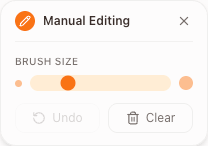
After processing, zoom in and check important sections before downloading the final file. If a small mark remains, use manual editing to clean only that area instead of reprocessing the whole page.
Manual editing is especially helpful for underlines, circles, margin marks, and highlighter strokes near dense text. Use it lightly so the surrounding page texture and printed content still look natural.
When to Use Another Cleanup Tool
Use the highlight tool when the main issue is visible marker color on a scanned PDF page. If the page has handwritten notes, signatures, scribbles, or pen marks beyond highlighting, use Remove Handwriting from PDF.
Choosing the right tool keeps the cleanup focused. A highlighted study packet should start with highlight cleanup. A messy document photo should start with scan cleanup. A page full of handwritten notes should use handwriting removal.
Remove visible highlights from scanned PDF pages while keeping the text readable.
Clean a Highlighted PDF