Introduction
We've all been there: You scan a crucial document, such as a rental agreement, a research paper draft, or a family recipe, only to realize your handwritten notes, scribbles, or annotations are smudged across the page. What should be a clean, shareable PDF turns into a messy file that’s hard to read, edit, or send to colleagues, landlords, or clients. Manually erasing those notes with basic image tools takes time, often leaves blurry traces, and rarely works well on dense scanned PDFs.
But what if there was a faster, smarter way to strip away handwriting from scanned documents while preserving the original layout, text, and even colors? Enter our specialized online tool, designed to solve this exact problem. Whether you’re a student cleaning up lecture notes, a professional prepping contracts, or someone digitizing old documents, this guide will show you how to turn cluttered scans into polished PDFs without handwriting in minutes. No advanced design skills are required. With just a few clicks, you’ll have a document that looks like it was never annotated.
Upload a scanned PDF and clean handwritten notes, scribbles, and annotations online.
Remove Handwriting from PDFUpload Your Scanned Documents
Getting started with Handwriting Remover is simple and straightforward. Visit the homepage, and you’ll see a dropzone where you can drag in your scanned document or click to choose a file from your computer. There’s no need to download any software or sign up right away. You can start using the tool instantly. We focus on scanned PDFs, which are the most common format for documents like contracts, invoices, or academic papers that might have handwritten notes.
If you have a single scanned PDF, for example a lease agreement with one page and some handwritten edits, drag and drop it into the upload area or click the dropzone to select it from your computer. The tool will quickly display a preview of your document, so you can make sure you’ve uploaded the correct file.
For more complex tasks, like uploading a PDF with many pages and handwritten notes on every page, or multiple scanned PDFs at once, you’ll need to create a free account and log in. This login step helps us manage your files securely and efficiently, ensuring that all your pages are processed in order and that you can access your results easily.
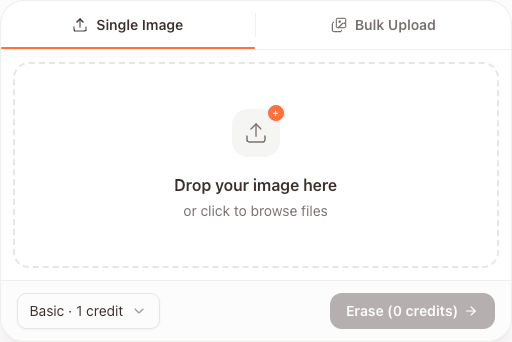
Start with your scanned PDF and preview the cleaned result in a few clicks.
Upload a PDFChoose Your Processing Model
Once your scanned PDF is uploaded, it’s time to pick the right tool for the job: we offer two specialized models to match your document needs and budget.
First, the Basic Model is ideal for standard documents in black and white, such as old letters, typed forms with handwritten fills, or simple notes. It strips away handwriting cleanly while preserving the original text and layout in grayscale. At just 1 credit per page, it’s an affordable choice when you need to process many monochrome pages.
For documents that need a professional, polished finish, opt for the Advanced Model. This powerhouse uses AI to retain the original document’s colors, which makes it useful for scanned brochures with handwritten markup, notes written in colored ink on textbooks, or documents with logos and graphics. It also delivers stronger removal capabilities, tackling faint scribbles or overlapping handwriting that the Basic Model might miss. The Advanced Model is priced at 3 credits per page, a small investment for vibrant results that look nearly perfect.
Not sure which to choose? For most everyday scanned PDFs with standard notes written in black ink, the Basic Model works great. If color accuracy matters or the handwriting is complex, the Advanced Model is worth the extra credits.
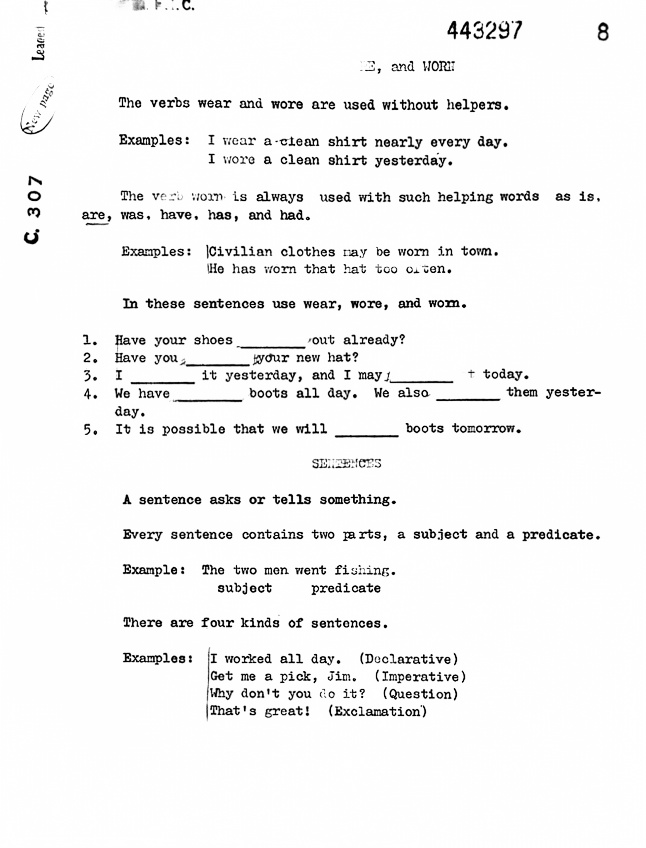 Basic
BasicCleanup that converts the page to black and white, crops automatically, and removes handwriting and clutter.
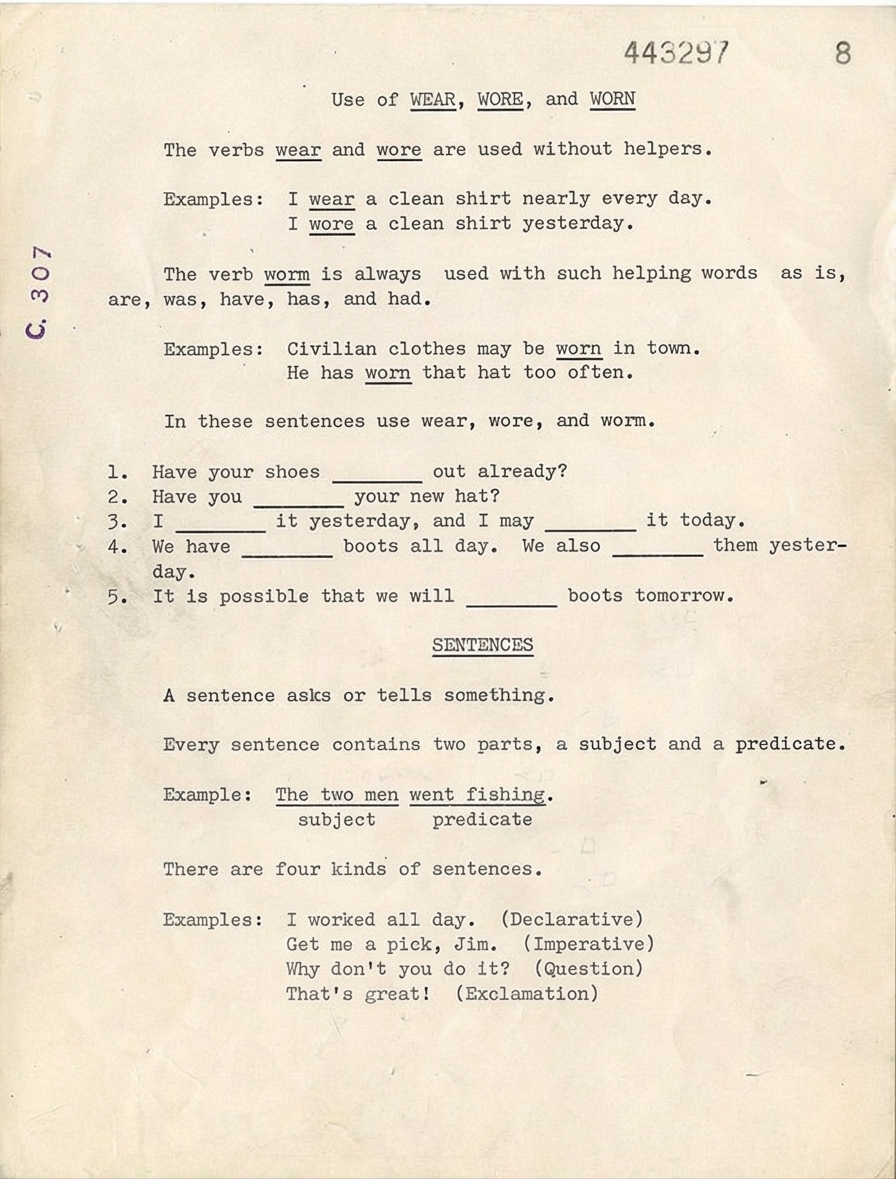 Advanced
Handwriting removal that preserves the page’s original color and detail for a natural finish.
Manual Editing: Polish Your Results to Perfection
Sometimes, even after AI processing, you might spot small leftover marks, like a faint scribble or a partial note. Our manual editing tool lets you clean these up easily.
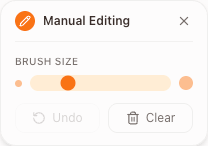
You can zoom in or out on the document to focus on specific areas, whether you need to target a tiny detail or check the overall look. Then, use the adjustable brush tool: slide to change the brush size, from small for precise touches to larger for bigger sections. Just drag the brush over any remaining handwriting or imperfections, and the tool will smooth them out to match the surrounding background or text.
If you make a mistake, the "Undo" button lets you reverse the last edit, and "Redo" brings it back if needed. You can edit as many times as you want until the document looks just right, then download it using the same options as before.
Why Handwriting Remover Stands Out
Handwriting Remover takes the hassle out of cleaning scanned documents. No complex photo editing skills are needed. Just upload, choose a model, and get a clean result in minutes. The Basic Model handles everyday scans in black and white affordably, while the Advanced Model preserves colors for polished, professional output. And with manual editing, you can tweak every detail until it’s perfect. Whether for personal use, school, or work, it’s a fast, reliable way to turn cluttered scans into clear, shareable documents.
Turn cluttered scanned PDFs into cleaner, shareable documents with Handwriting Remover.
Try the PDF Tool