Introduction
Taking a quick photo of a paper document is often easier than using a scanner. But phone photos can create their own problems: hand shadows, dark corners, desk shadows, uneven lighting, visible table backgrounds, and page edges that make the document look messy.
Even when the text is readable, the final image may not look clean enough to print, send, upload, or archive. A normal photo editor can brighten the whole image, but that often washes out the paper and makes the text harder to read.
This guide shows you how to clean document photos with Clean Scanned Document. The goal is to reduce shadows, crop the paper frame, clean the background, and make the page look closer to a real scan.
Upload a document photo, reduce shadows, crop the page, and make it easier to read.
Clean a Document PhotoWhy Document Photos Get Shadows
Shadows usually appear when the light source is blocked by your hand, phone, body, or nearby objects. A sheet of paper placed on a desk may also pick up dark edges from the table, uneven room lighting, or a curved page surface.
These problems are common because paper is flat, reflective, and sensitive to small lighting changes. A page inside a book or folder can also create a deep shadow near the spine. A wrinkled or folded page can make the lighting look uneven across the surface.
The best results come from photos where the text is still visible inside the shadow. If a dark area completely hides the words, cleanup can improve the page appearance, but it may not fully recover missing text.
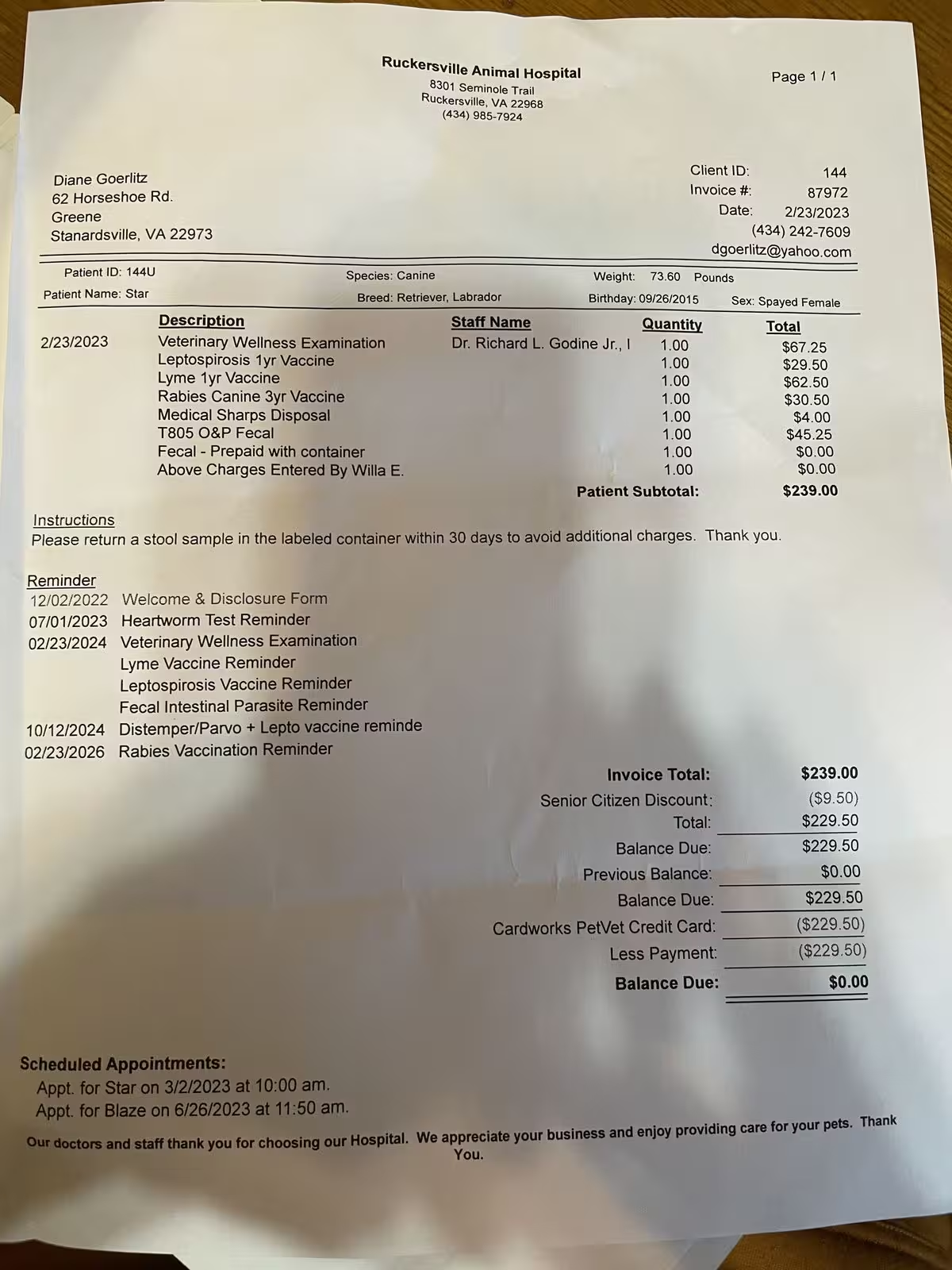 Before
A phone photo of a paper document with dark edges, desk shadows, and uneven lighting across the page.
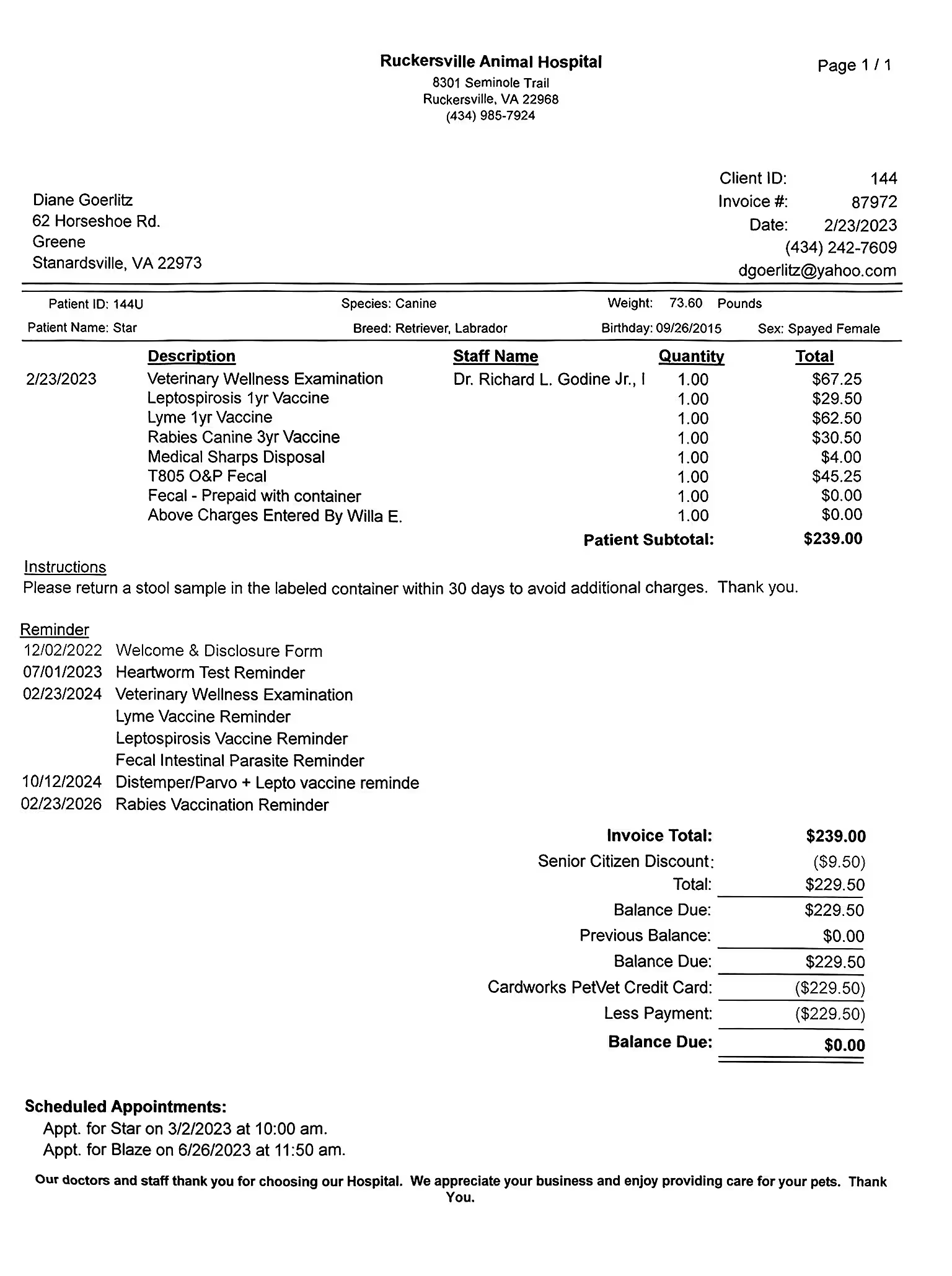 After
AfterThe same document after cleanup, with reduced shadows, cleaner page edges, and more readable text.
Upload Your Document Photo
Upload a phone photo, scanned page, screenshot, or PDF. This workflow is useful for forms, receipts, invoices, letters, reports, school pages, medical papers, and other paper documents.
Before processing, check the preview. Make sure the page is not too blurry and that the important text is visible. If the document has extra background around the paper, such as a table, desk, keyboard, or another page, the cleanup tool can help crop the document frame and remove the surrounding area.
If your document photo also has handwritten notes, answers, or pen marks, clean the page quality first. Then use Remove Handwriting from Image for the writing itself.
Clean shadows, crop the page, and improve readability in a few clicks.
Upload a Document PhotoClean Shadows and Page Backgrounds
Once your file is uploaded, choose the cleanup option that best matches the page. For simple phone photos with mild shadows, a fast cleanup model may be enough. It can crop the page, reduce gray areas, and make the document look cleaner for everyday use.
For more difficult pages, use a stronger cleanup model. This is helpful when the document has dark corners, uneven lighting, visible folds, wrinkled paper, a colored background, or a page photographed on a dark surface.
If you are working with a PDF packet or several document photos, test one page first. Once you know the result looks good, continue with the rest of the pages.
Review and Fine-Tune the Result
After processing, review the cleaned page closely. Look at the text inside the previously shadowed areas, the page edges, and the corners. Most document photos do not need perfect editing. They just need to be clear enough to read, print, send, or upload.
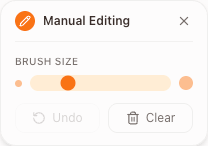
If there are small leftover marks, dark patches, or background areas around the page, use manual editing to clean specific spots. The brush tool can help you target small areas without changing the entire document.
Manual editing is useful when the shadow touches the edge of the text, when a fold line remains visible, or when an object near the paper was not fully removed by automatic cropping.
When to Use Another Cleanup Tool
Use the document cleanup tool when the main problem is photo quality: shadows, gray background, page edges, paper folds, messy background, or uneven lighting. It is the best starting point when you want a phone photo to look more like a clean scan.
If the document is already clean but has visible highlighter marks, use Remove Highlights from PDF. For shadowed document photos, scan cleanup should come first.
Clean messy document photos, reduce shadows, crop the page, and download a clearer result.
Remove Shadows from a Document Photo