Introduction
Used worksheets are everywhere: completed homework pages, filled-in practice sheets, classroom handouts, tutoring materials, test prep pages, and printable exercises. Sometimes you no longer have the original blank file, but you still want to reuse the same worksheet for another student, another lesson, or another round of practice.
Recreating the worksheet by hand takes time. Searching for the original PDF is not always possible. Basic photo editors can erase small areas, but they often leave blurry patches, broken answer boxes, or damaged printed questions. A better approach is to clean the written answers while keeping the worksheet structure intact.
This guide shows you how to make a used worksheet blank again with Remove Answers from Worksheet. The goal is not to rebuild the whole page from scratch. It is to remove the filled-in parts while preserving the printed questions, lines, tables, and layout as much as possible.
Upload a completed worksheet and clean handwritten answers online.
Remove Answers from WorksheetWhy Used Worksheets Are Hard to Reuse
A worksheet is not just a plain image. It usually has printed questions, answer lines, tables, diagrams, labels, borders, page numbers, and spacing that all need to stay readable. When answers are written over those areas, cleanup becomes more difficult than simply erasing a blank background.
Pencil marks, pen answers, circles, check marks, underlines, teacher corrections, and margin notes can all overlap with the printed content. If you remove too much, the worksheet becomes damaged. If you remove too little, the old answers remain visible. The goal is to clean the filled-in parts while preserving the original page layout.
The best results come from clear scans or photos where the answers are visible and the printed worksheet is not too blurry. If the page has heavy shadows, wrinkles, or a messy background, clean the scan first before removing the answers.
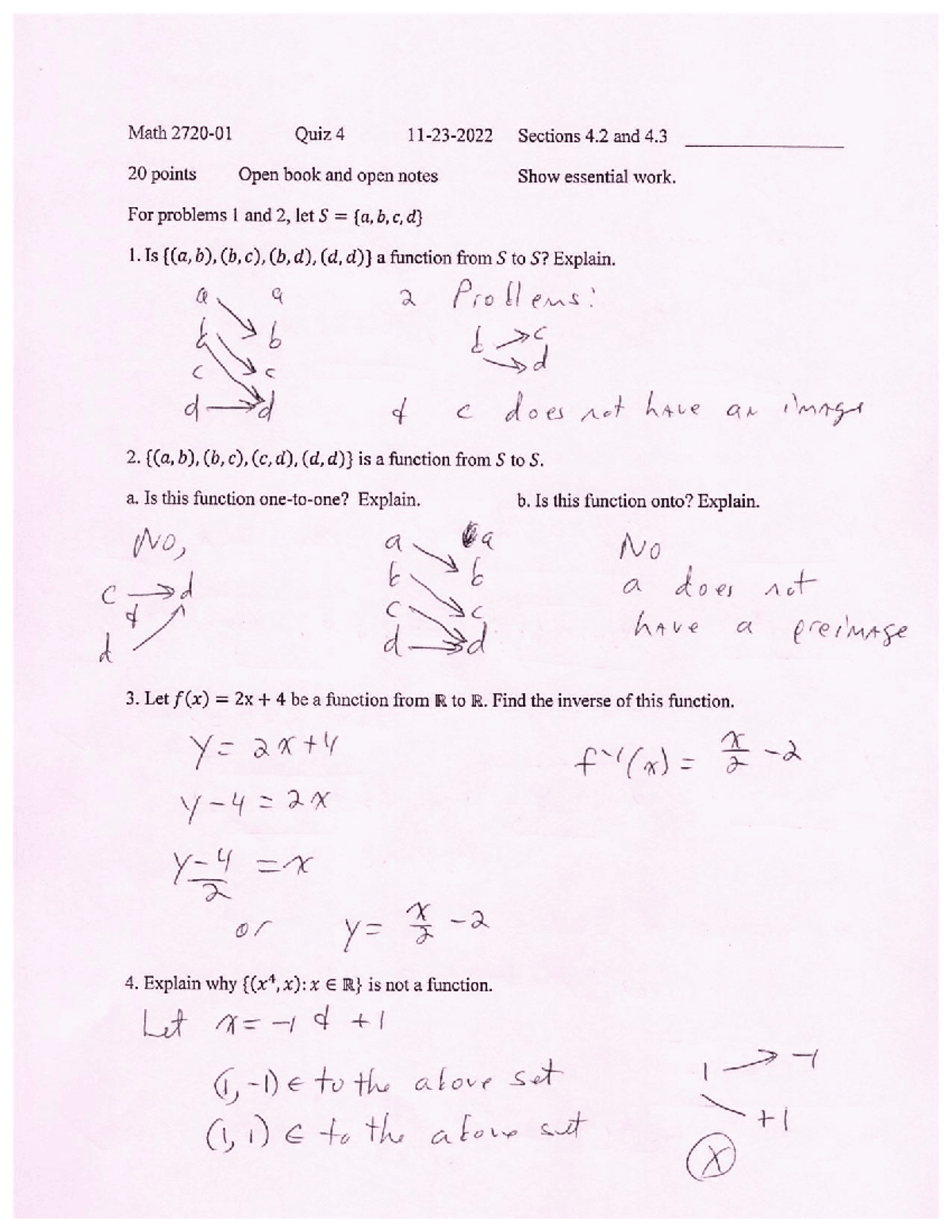 Before
A used worksheet with handwritten answers, pencil notes, circles, and teacher marks on the page.
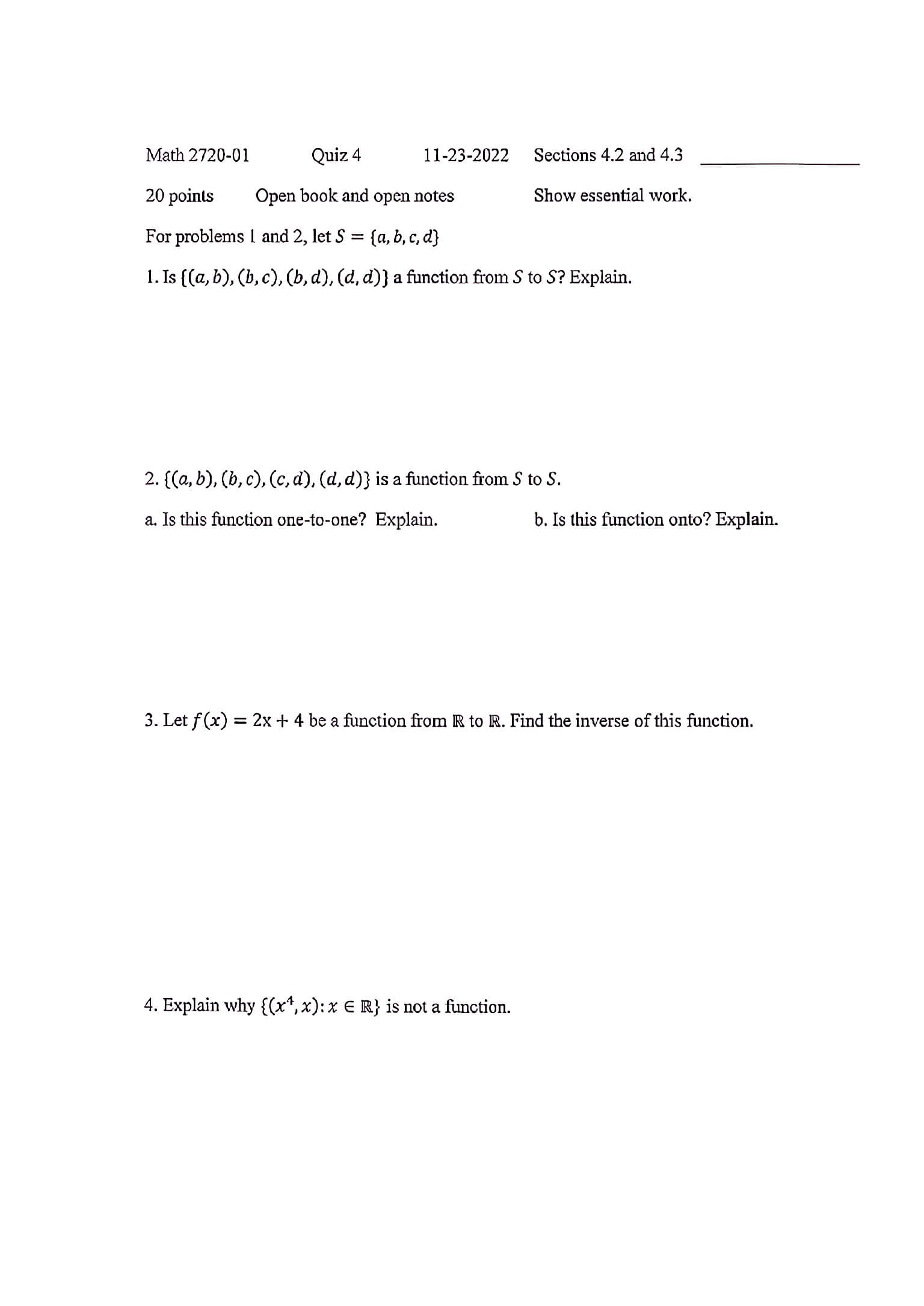 After
AfterThe same worksheet after cleanup, with the printed questions and page structure kept readable.
Upload Your Completed Worksheet
Open the worksheet cleanup tool and upload your file. You can use a worksheet image, phone photo, screenshot, scanned page, or PDF packet. This works well for math worksheets, grammar exercises, practice tests, classroom handouts, tutoring pages, and printable study materials.
Before processing, preview the page and check whether the printed questions are clear. If the photo has strong shadows, dark edges, folded paper, or extra background around the page, start with Clean Scanned Document to improve readability first.
If your file is a multi-page worksheet packet, you can upload the PDF directly instead of converting each page into an image manually. Make sure the pages are in the correct order before processing.
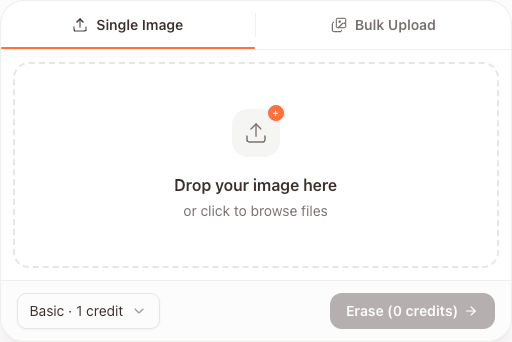
Clean a completed worksheet and make it easier to reuse or print.
Upload a Used WorksheetRemove the Written Answers
Once your worksheet is uploaded, choose the cleanup model that fits the page. For simple black-and-white worksheets with pencil or pen answers, the Basic model is often enough. It is useful for standard homework pages, printed exercises, and practice sheets where the page does not need to keep much color detail.
Use the Advanced model when the worksheet has colored diagrams, shaded boxes, logos, small text, complex tables, or answers that overlap printed content. Advanced cleanup can better preserve the original appearance while removing finer marks.
If you have many pages, test one worksheet first. Review the cleaned result before processing the full packet. This helps you choose the right model and avoid spending credits on pages that may need a different approach.
Review and Fine-Tune the Page
After the worksheet is cleaned, zoom in and check important areas: answer boxes, printed questions, diagrams, equation lines, and table cells. The page does not need to look perfect, but it should be clear enough for printing, practice, or classroom use.
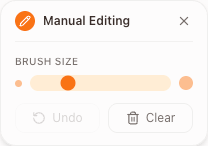
If a small answer mark remains, use manual editing. The brush tool lets you target specific spots without reprocessing the whole page. You can adjust the brush size, clean small sections, undo mistakes, and refine the worksheet before downloading.
Manual editing is especially useful when an answer overlaps a printed line, when a check mark sits next to a question, or when a faint pencil mark remains after automatic cleanup.
When to Use Other Cleanup Tools
Use the worksheet tool when your goal is to turn a completed worksheet into a cleaner reusable practice page. It is the best fit for homework sheets, tutoring materials, printed exercises, and classroom handouts.
If the file is a larger scanned PDF with handwritten notes, scribbles, or annotations beyond worksheets, use Remove Handwriting from PDF. If the main issue is page quality, such as shadows, folded paper, gray background, or visible desk area, clean the scan first.
Remove handwritten answers and download a cleaner worksheet for practice, teaching, or reuse.
Make a Worksheet Blank Again