Introduction
A filled form is useful when someone needs to submit information. But when you need the original blank version again, the handwritten entries, check marks, signatures, notes, and pen marks can get in the way. This often happens with registration forms, intake forms, applications, worksheets, office templates, and scanned paperwork.
If you no longer have the original file, rebuilding the form manually can take a long time. Basic editing tools can erase small areas, but they may damage boxes, labels, lines, and printed fields. The goal is to remove the filled-in content while keeping the form structure readable.
This guide shows you how to clean a filled form for reuse with Remove Handwriting from Forms. It is designed for scanned forms, form photos, and PDF pages where the entries are part of the image.
Why Filled Forms Are Hard to Clean
Forms are more structured than normal documents. They usually contain labels, boxes, checkboxes, signature lines, tables, dotted lines, section headers, and small printed instructions. When someone fills in the form, the handwriting often overlaps those elements.
That is why form cleanup is different from simple erasing. If too much is removed, the form fields can break. If too little is removed, the old entries remain visible. A good cleanup result should preserve the printed form while reducing handwritten content, check marks, and stray pen marks.
The best results come from clear scans or photos where the printed form is still visible. If the form photo has shadows, folded paper, dark corners, or a messy background, improve the page quality before removing the entries.
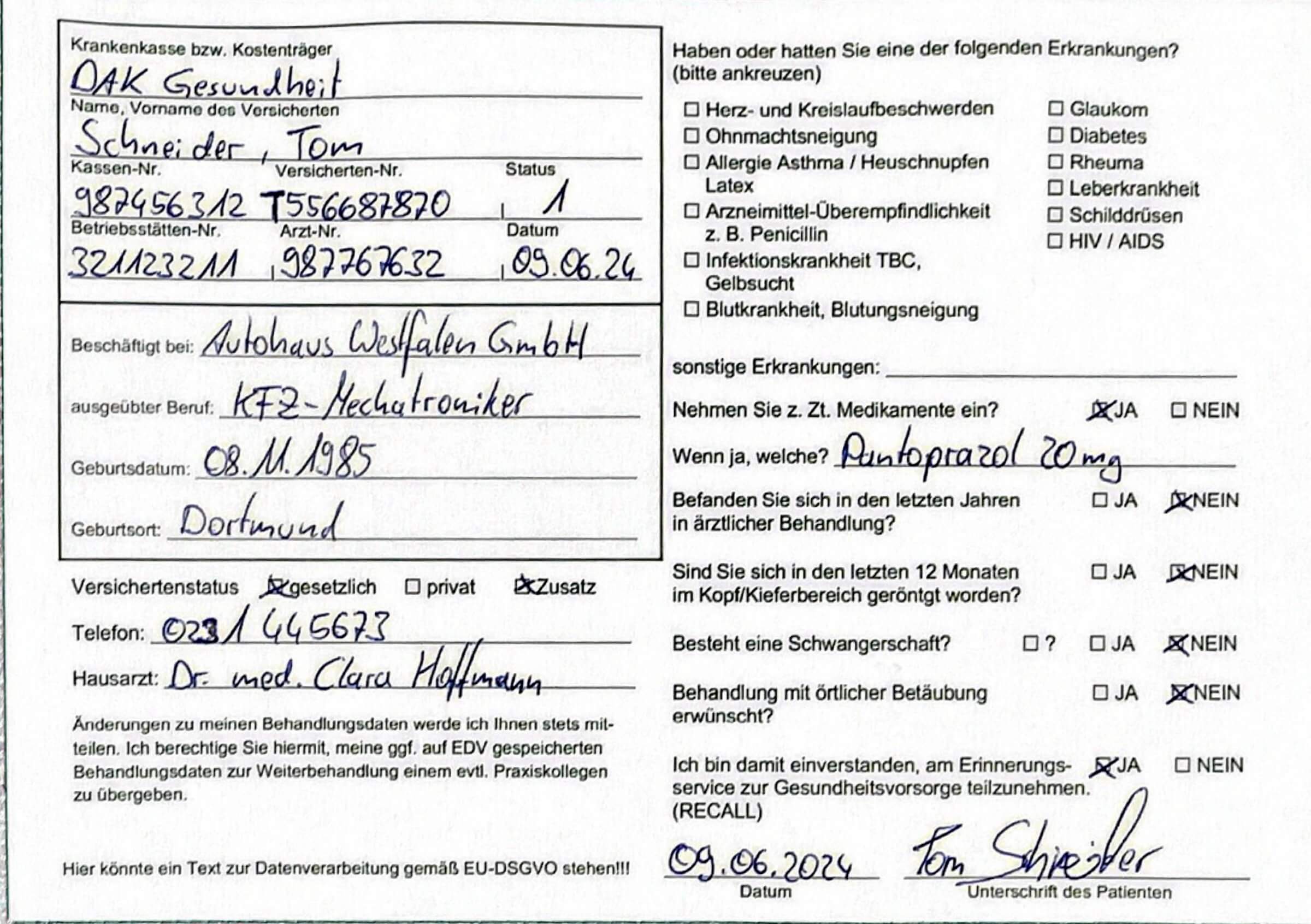 Before
A scanned form with handwritten entries, check marks, notes, and pen marks filled into the fields.
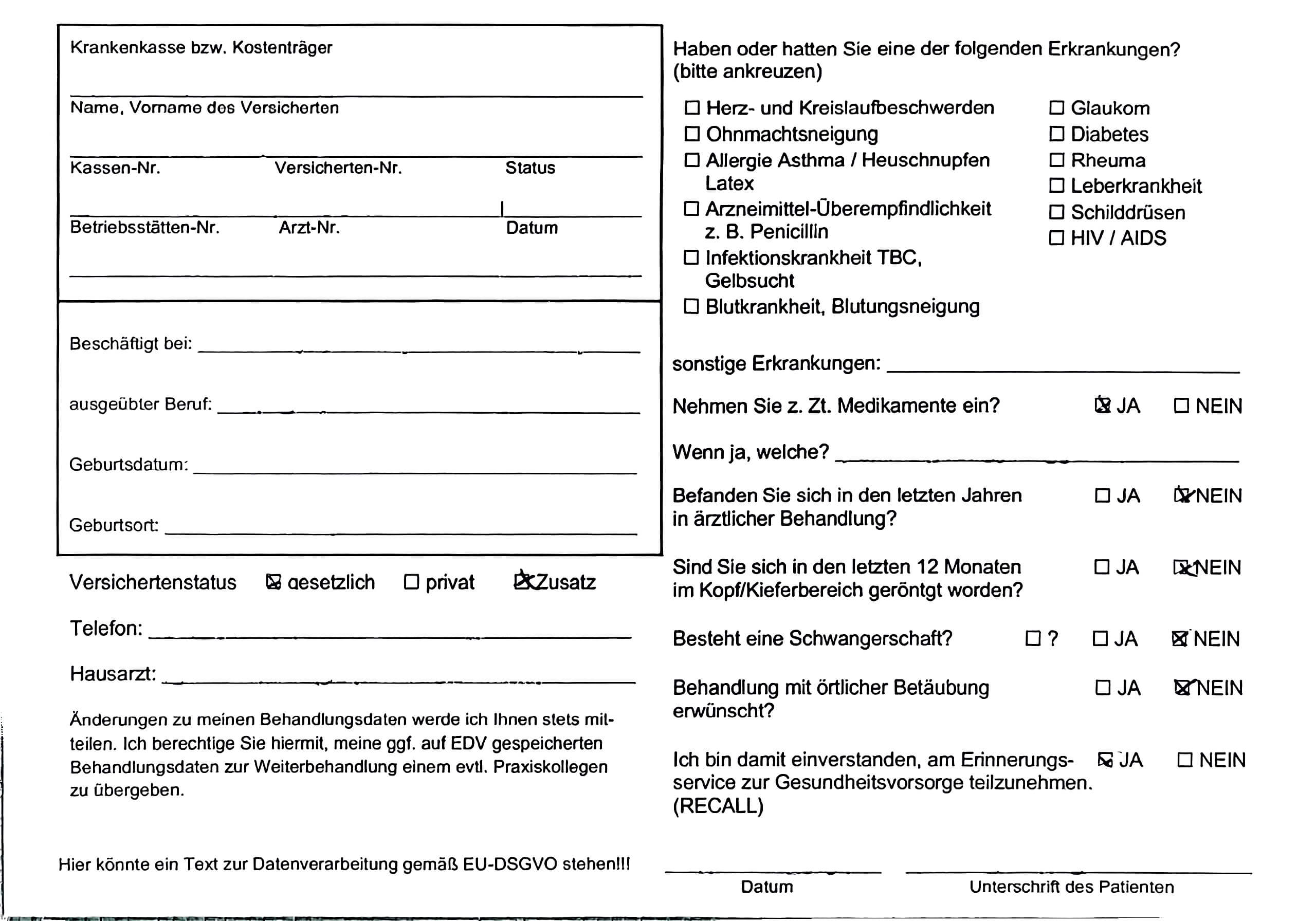 After
AfterThe same form after cleanup, with the printed labels, boxes, lines, and layout kept readable.
Upload Your Filled Form
Start by uploading your scanned form, phone photo, screenshot, or PDF page. This workflow works for office forms, school forms, intake sheets, registration forms, templates, checklists, and other paper documents with filled-in handwriting.
Before processing, check the preview. Make sure the printed labels, boxes, and lines are clear. If the page has strong shadows, gray background, folded paper, or extra desk area around the form, start with Clean Scanned Document to make the page easier to read.
If your form is part of a multi-page scanned PDF, you can upload the PDF directly instead of converting each page into an image first.
Remove the Filled-In Content
Once the form is uploaded, choose the cleanup model that matches the page. For simple black-and-white forms with clear handwriting, the Basic model is usually a good starting point. It works well for standard forms, checklists, and simple templates.
Use the Advanced model when the form has colored logos, shaded sections, small labels, complex tables, or handwritten entries that overlap printed fields. Advanced cleanup can better preserve the original page appearance while removing finer marks.
If you have many pages, process one form first. Review the result before cleaning the rest of the packet. This helps you choose the right model and avoid spending credits on pages that need a different approach.
Review and Fine-Tune the Form
After cleanup, zoom in and review the important form areas: names, address fields, checkboxes, signature lines, labels, section headers, tables, and borders. The cleaned form does not need to be perfect, but it should be clear enough to reuse, print, or share as a cleaner template.
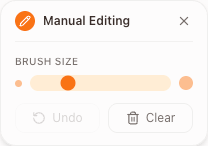
If a small mark remains, use manual editing. The brush tool lets you clean specific spots without reprocessing the entire page. You can adjust the brush size, correct small areas, undo mistakes, and refine the form before downloading.
Manual editing is especially helpful around checkboxes, signature lines, small labels, and fields where handwriting touches the printed form structure.
When to Use Another Cleanup Tool
Use the form cleanup tool when your goal is to turn a filled form into a cleaner reusable template. It is the best fit for scanned forms, photographed forms, office paperwork, school forms, and PDF pages with handwritten entries.
If the file is a larger scanned PDF with handwritten notes, scribbles, or annotations beyond forms, use Remove Handwriting from PDF. If the main problem is page quality, clean the scan first before removing the filled-in content.